

If you already have a finished song, you can turn it into a complete Music Video in Mureka. The AI does more than generate a few good-looking clips. It understands the song like a director, plans the storyboard, and lets you keep editing, previewing, and exporting with Mureka MV Director.
What Is AI MV?
In the past, making an AI music video often felt like a material experiment: write a prompt, get a short clip, and then manually stitch everything together. Mureka AI MV brings song analysis, storyboard planning, video generation, and visual editing into one workflow, so the visuals can move with the music instead of feeling random. AI Director analyzes the full song, including lyric meaning, Intro, Verse, Chorus, Bridge, emotional changes, and musical style. It then creates a story direction, storyboard, and shot rhythm before organizing every Shot in Mureka MV Director for further editing.
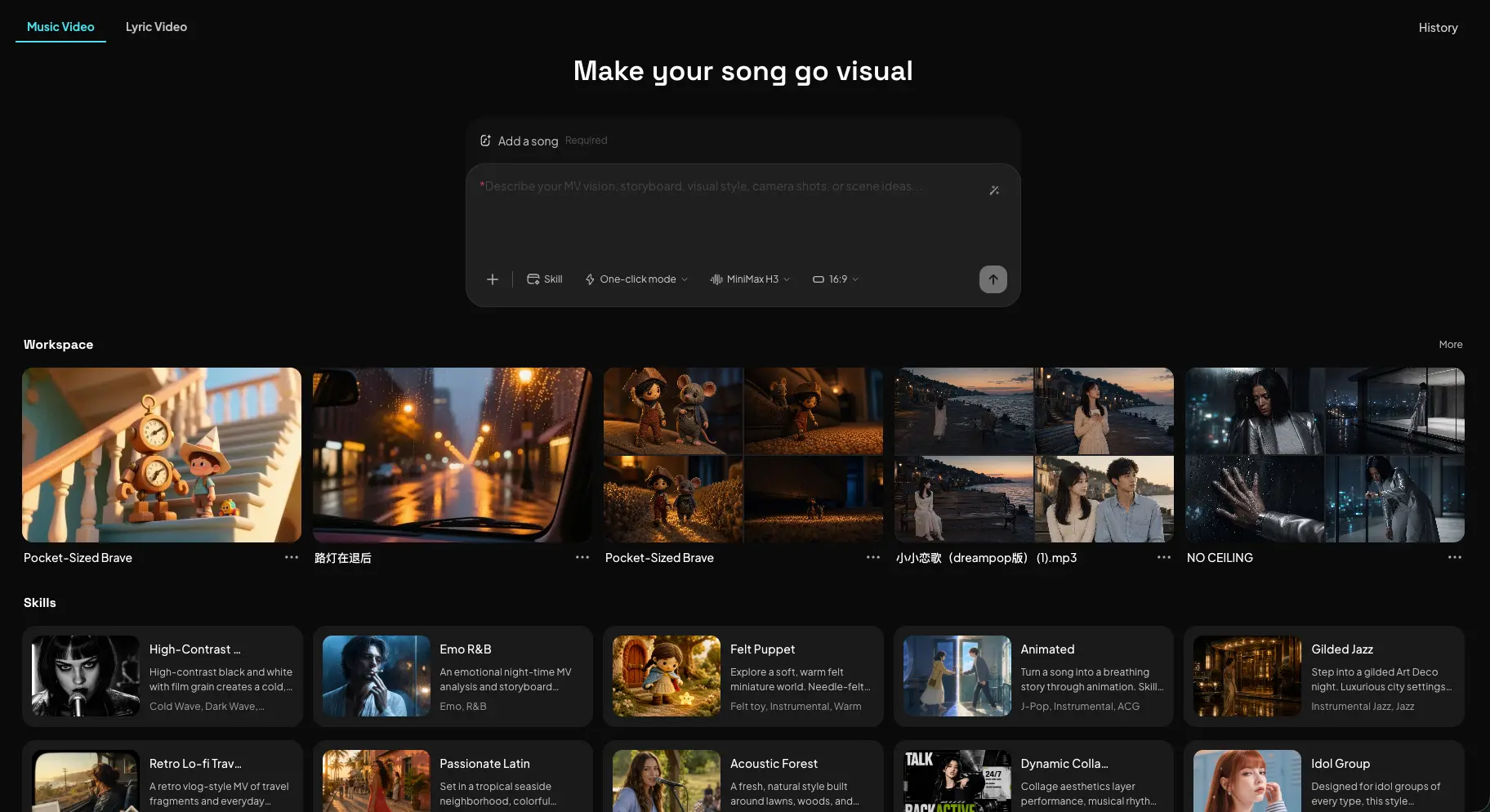
Create an AI MV in 5 Steps
- Choose a Song and Start Music Video Creation
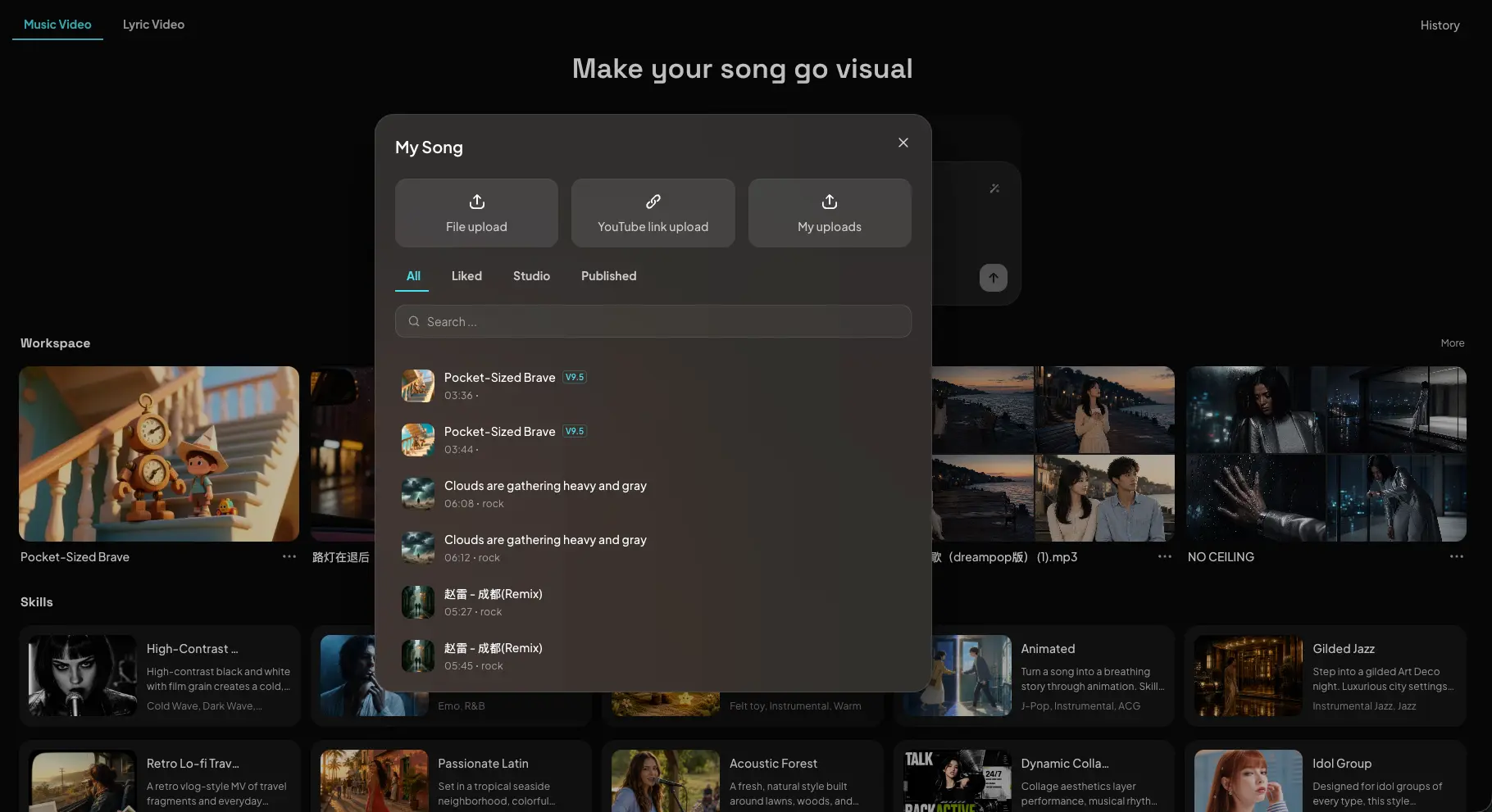
Enter the Music Video creation flow from a song. You can give the complete track to AI Director, so it works from the full structure instead of only a short segment.
- Choose the Right MV Skill
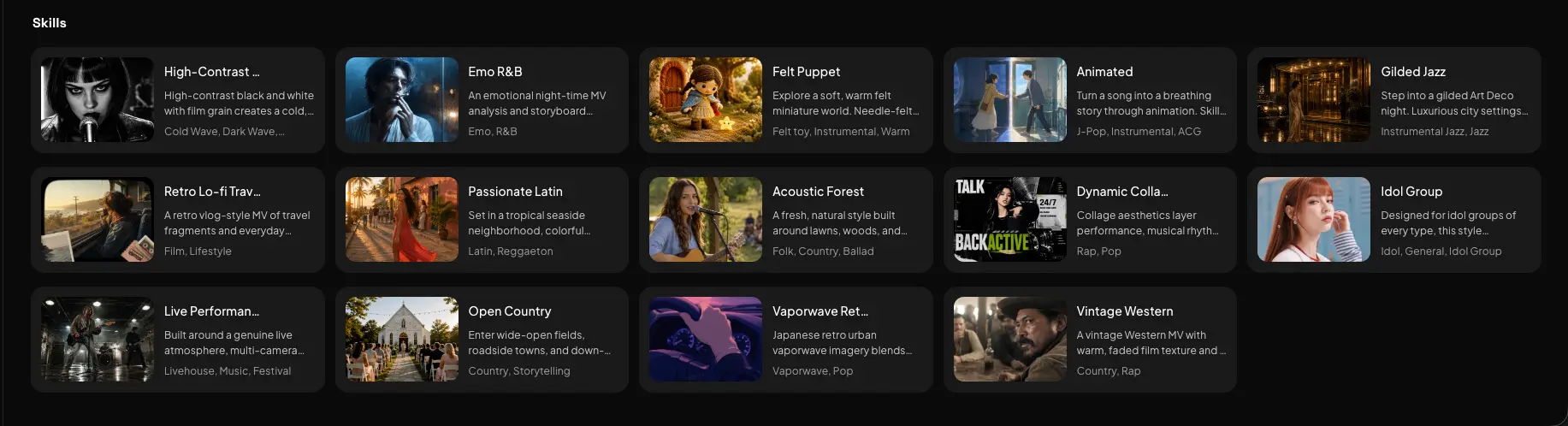
Mureka includes a wide range of MV Skills, covering Rock, R&B, Country, Latin, Jazz, Folk, Hip-Hop, City Pop, Funk, K-pop, J-pop, Techno, Ambient, and more. You can choose one manually, or let the system recommend a Skill based on the song style.
- Pick a Generation Mode
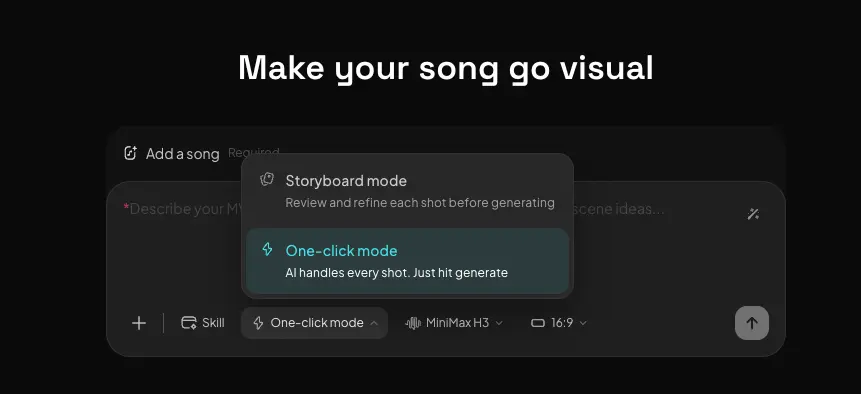
Storyboard Mode is for creators who want to shape the idea. You can talk with AI Director in natural language, describe the story, style, characters, and scenes, then refine the storyboard step by step.
One-Click Mode is for faster results. AI automatically handles song analysis, shot planning, and full MV generation, allowing you to quickly create a complete first version.
- Review and Edit in Mureka MV Director
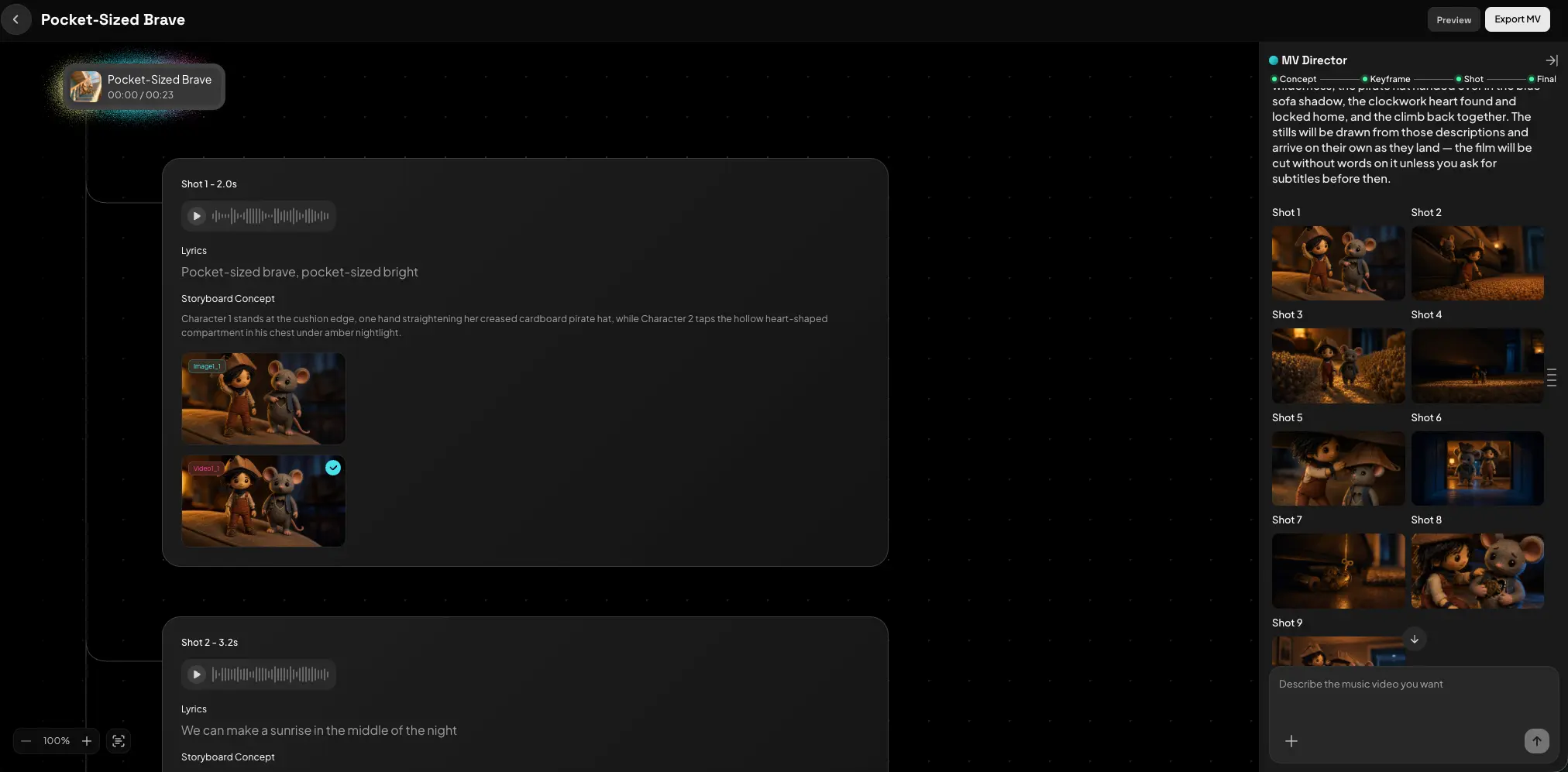
Mureka MV Director puts conversation and creation side by side. Talk to AI on the right, and review the storyboard, Shot progress, and generated visuals on the left.
You do not need to build a complex timeline or organize every asset manually. The workflow shifts from traditional editing to directing, allowing you to focus on the creative decisions that shape the MV.
- Generate, Preview, and Export the Full MV
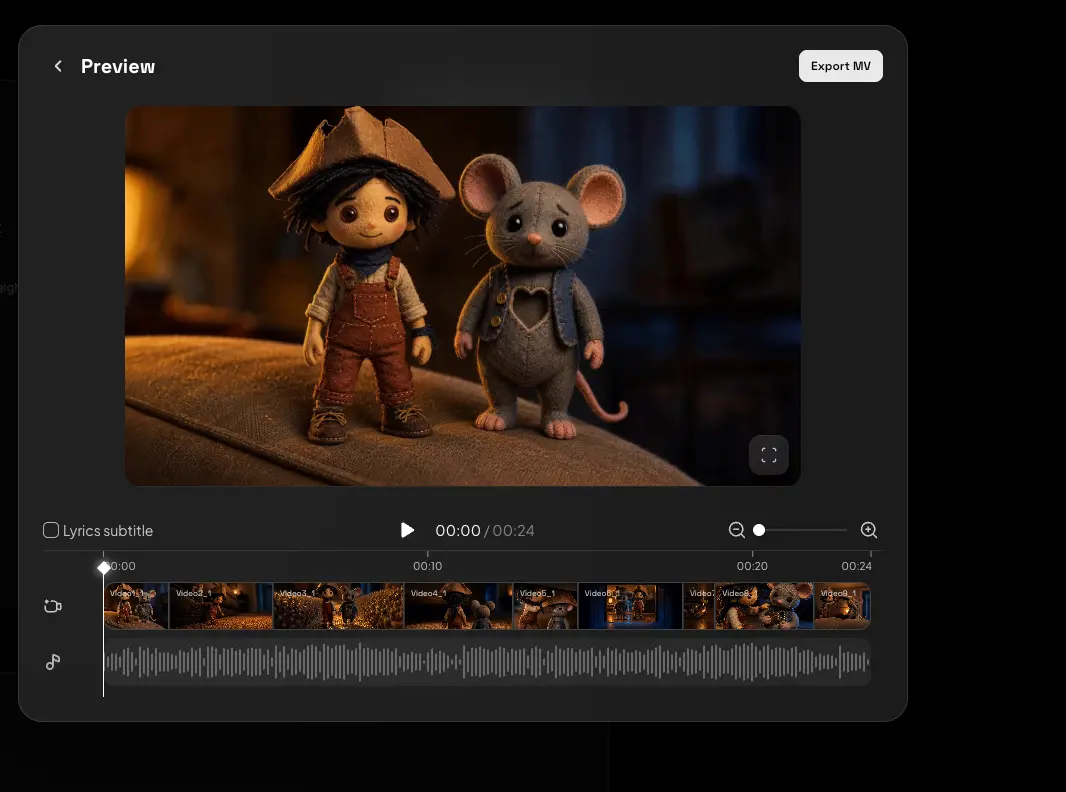
After the storyboard is ready, generate the video Shot by Shot. If one Shot is not right, edit or regenerate only that part instead of rebuilding the whole MV.
Your progress is saved automatically, so you can return later and continue editing before exporting a Full Song MV.
Mureka MV Director: Direct the Whole MV
Mureka MV Director is designed to handle the time-consuming parts of MV production: analyzing the song, planning the storyboard, and supporting creative iteration.
Once the storyboard is created, every Shot connects with the story and rhythm around it. You can see how the entire MV moves from beginning to end, while still having control over individual scenes.
When you want to change a Shot, simply describe the direction. You can switch the scene, strengthen the performance, adjust the visual style, match the chorus emotion more closely, or regenerate a specific Shot.
AI continues from the current storyboard structure, helping the MV maintain narrative and visual consistency.
Two Modes for Different Creative Speeds
Storyboard Mode works best when you have a clear creative idea. Treat AI Director as a music-aware MV director and refine the story, Shots, visual style, and rhythm through conversation.
One-Click Mode works best when you want a fast first version. After you choose a song, AI completes the analysis and generation flow, giving you a full MV to preview before you decide whether to polish specific parts in Mureka MV Director.
From Short Clips to Full Song MV
AI MV is no longer limited to a few seconds of visual material. A complete song can become a complete MV.
AI covers the full song structure and plans the mood, visual density, and Shot transitions for the Intro, Verse, Chorus, and Bridge. Each section can have its own visual function while remaining part of the same overall story.
For video generation, Mureka includes advanced video models such as MiniMax H3 and Seedance 2.5. You can use these models directly in the Mureka workflow without connecting separate third-party tools.
FAQ
How Is AI MV Different from Regular Video Generation?
Regular video generation usually starts from one prompt or one clip. AI MV first understands the song, then plans the full video around its music structure, lyrics, emotion, and genre.
Do I Have to Write the Storyboard Myself?
No. One-Click Mode can create the storyboard automatically. If you want more control, use Storyboard Mode to refine it with AI Director.
Can I Regenerate Only One Shot?
Yes. Mureka MV Director supports Shot-level edits and regeneration, so one imperfect Shot does not require regenerating the whole MV.
Does It Support Full Songs?
Yes. Mureka can plan a storyboard from the full track and export a Full-Length Music Video.
Is My Progress Saved?
Yes. Mureka MV Director automatically saves your progress, so you can return and continue editing later.
Turn One Song into a Complete MV
A song already contains melody, emotion, and story. AI MV turns those signals into visual language.
Mureka uses AI Director to understand the music, Skills to match the genre, Mureka MV Director to manage storyboard editing, and advanced video models to generate the final visuals.
Start from your song now: choose Music Video, let AI Director break down the music, generate a Storyboard, and finish your first AI MV with Mureka MV Director.