
Easy Mode
Chat with an AI co-producer to create songs — just describe what you want in natural language, and Mureka handles the rest.
Core Capabilities
- Conversational creation: describe your idea in a sentence, Mureka generates a full song (lyrics + music)
- AI understands context: follow up with refinements like "make it more upbeat" or "change to female vocal"
- Quick starters: tap preset prompts like "Make a beat" to get started instantly
- Auto-generates song title, lyrics and style descriptions
- Supports choosing reference, vocal, and switching to instrumental-only mode
Why Use It
- Zero learning curve — no music knowledge needed, just talk to it like a friend
- From idea to finished song in seconds to minutes
- The fastest way to turn any moment (birthday, heartbreak, a random vibe) into a real song
Boundaries
- Each generation produces 2 song variants to choose from
- Song length is typically 2–4 minutes
- Conversation context is per-session; starting a new chat resets context
- Currently supports text input only (no speech input in Easy mode)
Entry
- Create tab → Easy
How to Use
- Open Easy mode → type "Write a chill lo-fi track for studying" → tap Send
- Mureka generates a brief describing your song → automatically creates 2 versions
- Listen, pick your favorite, then Publish or Remix/Edit further
Custom Mode
AI-powered lyrics writing tools — generate full song lyrics from a theme, or let AI optimize and rewrite your draft.
Lyrics Generation
AI-powered lyrics writing tools — generate full song lyrics from a theme, or let AI optimize and rewrite your draft.
Core Capabilities
- Generate Lyrics: create complete song lyrics from scratch based on a theme or prompt
- Optimize: polish and improve existing lyrics while preserving the original meaning
- Supports structured output with verse/chorus/bridge tags
- Multi-language lyrics generation (English, Chinese, Japanese, Korean, Spanish, etc.)
Why Use It
- Overcome writer's block — get a full set of lyrics in seconds
- Professional structure — AI follows songwriting conventions (verse-chorus-bridge)
- Works as a creative partner — write your draft, then let AI polish it
Boundaries
- Generated lyrics are suggestions — you can freely edit them before creating the song
- Lyrics quality depends on the clarity of your input prompt, and the writing capability of current technology
- Very long or complex narrative lyrics may need manual adjustment
Entry
- Create Music → Custom tab → Lyrics input area → "Generate Lyrics" or "Optimize" button
How to Use
- Switch to Custom mode → in the Lyrics box, click "Generate Lyrics"
- Enter a theme like "missing someone on a rainy night" → AI generates full lyrics with [Verse], [Chorus], [Bridge] structure
- Edit any lines you want to change → click "Optimize" to polish the final version
- Proceed to set Style, Vocal Gender, and hit Create
Reference track
Upload an audio file as a style reference — Mureka analyzes its sonic characteristics and creates a new original song inspired by it.
Core Capabilities
- Upload any audio file (MP3, WAV, etc.) as a reference
- AI analyzes the reference's genre, tempo, mood, and instrumentation
- Generates a brand-new original song that captures a similar vibe — not a copy
- Combines with your lyrics and style inputs for maximum control
Why Use It
- "Sound like this but original" — bridge the gap between what you hear in your head and what you can describe in words
- Great for producers who work with mood boards and sonic references
- Legally safe — generates original compositions, not copies
Boundaries
- Reference is for style inspiration only — the output will NOT replicate the original song
- Audio files up to 100MB, duration 10s–10min
- Works best with clear, well-mixed reference tracks
- The AI interprets style loosely. Results may vary from the reference
Entry
- Create Music → Custom tab → "+ Reference" button at the top
How to Use
- Click "+ Reference" → upload an audio file you like
- AI extracts style tags from the reference (e.g., "Indie Pop, Acoustic Guitar, 110 BPM")
- Write or generate your own lyrics → hit Create
- The generated song will capture a similar feel to your reference but with original composition
Remix
Upload a song and transform it into a completely new style while keeping the melody and lyrics.
Core Capabilities
- Upload an existing song (your own or from Mureka library)
- AI preserves the core melody and lyrics while re-arranging in a new style
- Define the target style (e.g., turn a pop ballad into an EDM banger)
- Choose whether to keep original vocals or generate new ones
Why Use It
- Breathe new life into existing songs — hear your favorite melody in a totally different genre
- Perfect for content creators who need style variations of the same song
- Explore unexpected combinations — turn folk into drum & bass, rock into ambient
Boundaries
- Audio files up to 100MB; songs longer than 4 minutes may be trimmed
- The output is a reinterpretation, not a precise genre transfer
- Some extreme genre transformations (e.g., classical → heavy metal) may produce unexpected results
Entry
- Create Music → Custom tab → "+ Remix" button at the top; also available from any song's "Remix/Edit" dropdown
How to Use
- Click "+ Remix" → upload your song or select one from Library
- Define the target style in the Style field (e.g., "Lo-fi hip-hop, chill, vinyl crackle")
- Hit Create → Mureka generates a remixed version preserving the original's melody and lyrics
- Compare with the original, publish or continue editing
Vocal (Voice Clone)
Upload a voice sample to create a personalized AI vocal — use it to sing any song you create on Mureka.
Core Capabilities
- Import a song with clear or a cappella vocals, or record your own singing, as a voice reference to create a fixed singer Character.
- Use songs you've created on the platform to extract the voice and generate a fixed singer Character.
- Upload an image as the Character's look, used to promote future songs.
Why Use It
- Use a fixed singer Character to sing all your songs
- The singer Character's look can generate custom music videos
- Characters can be discovered and used by others, enabling remix creation and interaction
Boundaries
- The Character's voice can be used with a music reference and prompts, but it will mainly follow the Character's own traits.
- The Character's voice only serves as a reference for vocal timbre during generation; it does not set vocal range, melody, or genre.
- The Character voice currently supports lead melody only; harmony, backing vocals, humming, and other forms aren't supported yet.
Entry
- Tap Create, tap the +Vocal button, and select a Character to have it sing your newly generated song.
How to Use
Soundtrack
Core Capabilities
In "Soundtrack" mode, users can upload a video/image and generate matching music with one tap.
Why Use It
- Upload a video or image, and AI reads the scene and mood to generate a custom soundtrack that fits the content perfectly.
- Use natural language to specify style, lyrics, or instruments for a more customized soundtrack.
Boundaries
- Supports soundtracks with vocals or instrumental.
- Video up to 300MB / 3 min, in mp4 / mov / mpeg formats.
- Image up to 100MB, in jpg / jpeg / png / webp formats.
Entry
- Tap the Create Music menu, then the Soundtrack tab to use the soundtrack feature.
How to Use
- Tap the Create Music menu.
- Select the Soundtrack tab.
- Tap to upload the video/image file you want to score.
- Enter prompts for the mood, style, instruments, and more.
- Tap Create — your soundtrack is ready in seconds.
- Tap the Download Video button to merge the soundtrack with your video.
- Adjust the volume balance between the video's original audio and the soundtrack.
- Tap Download Video to download the final scored video.
Create Video
A powerful music video creator combining lyrics video creation and music-to-video generation in a professional creative environment.
Create Music Video
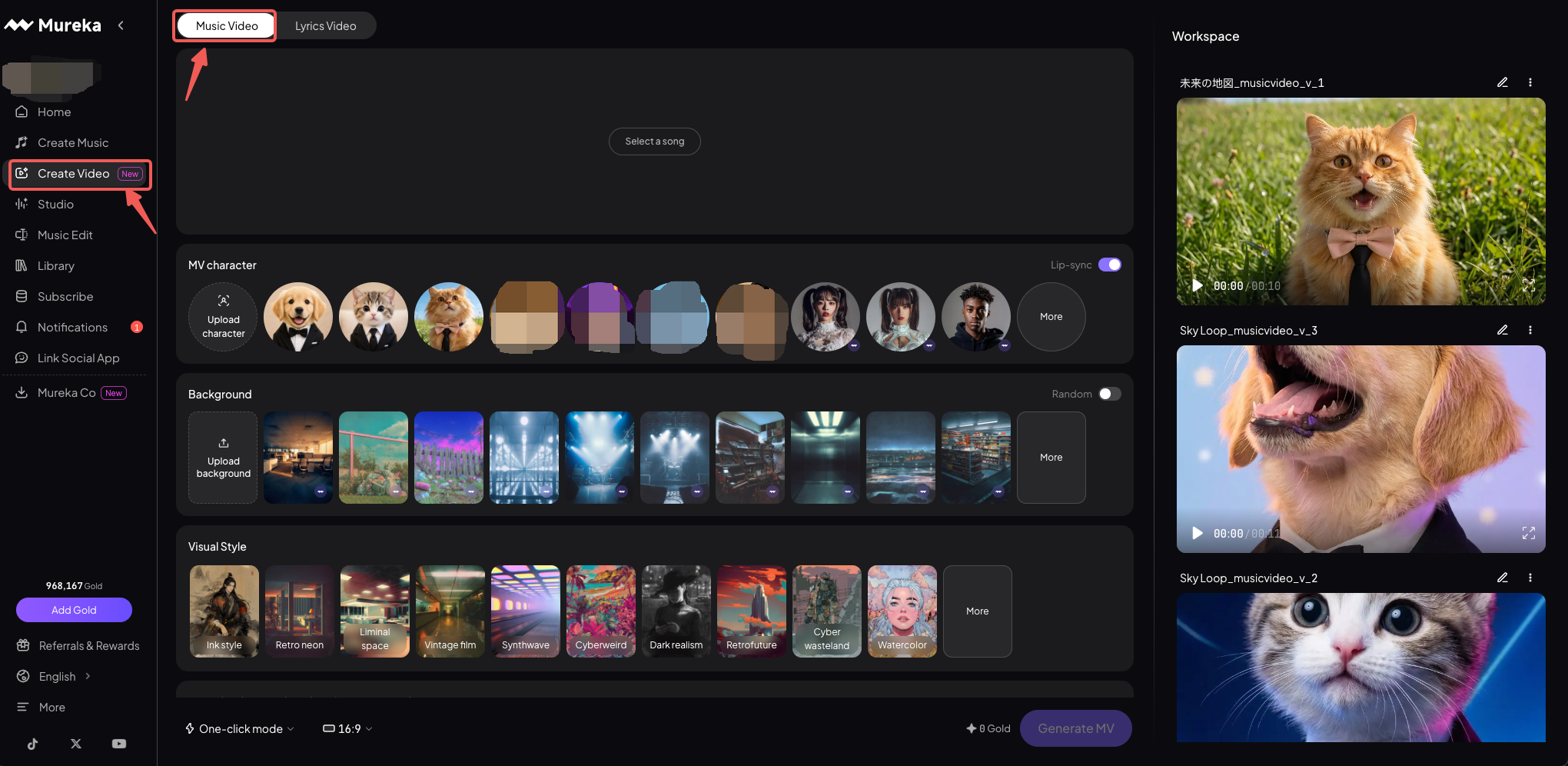
Generate a fully AI-rendered music video from a song — configure your character, background, and visual style, then let AI compose every shot or refine each scene yourself before generating.
Core Capabilities
- Lip-sync music video: Generate an MV where the character's mouth movements are synchronized to the song's vocals — no manual recording or editing required.
- Lyric-aware shot generation: The song's lyrics will be read to generate contextually relevant shots — each scene reflects the mood, narrative, and imagery of the words, not just the music energy.
- Storyboard editing before generation: In Storyboard mode, the AI pre-generates a shot-by-shot visual plan. Users can review each frame, regenerate any individual shot they're not happy with, and adjust the storyboard freely — then trigger the final render only when satisfied.
- Shareable MV output: The finished MV is saved to the Workspace and ready to download or share. Supports multiple aspect ratios (16:9, 9:16, 3:4, 4:3) so the output fits any platform — YouTube, TikTok, Instagram, and more.
Why Use It
- No editing skills needed
- Per-shot storyboard control
- Regenerate individual shots
- Lip-sync character support
- Many visual style choices
- Mood text + tag input
- Automatic lyrics subtitle matching
Boundaries
- Song clip length is at least 10s, max to 90s.
- Video content is fully AI-generated — no manual timeline editing now.
- In Storyboard mode, users can regenerate individual shot images before final generation; shot timing is system-assigned (by lyrics timeline).
- Character lip-sync availability is character-dependent, please ensure that the character image contains a clear face.
- Generation costs 40 Gold per second.
Entry
- Function Entry 1: Left sidebar
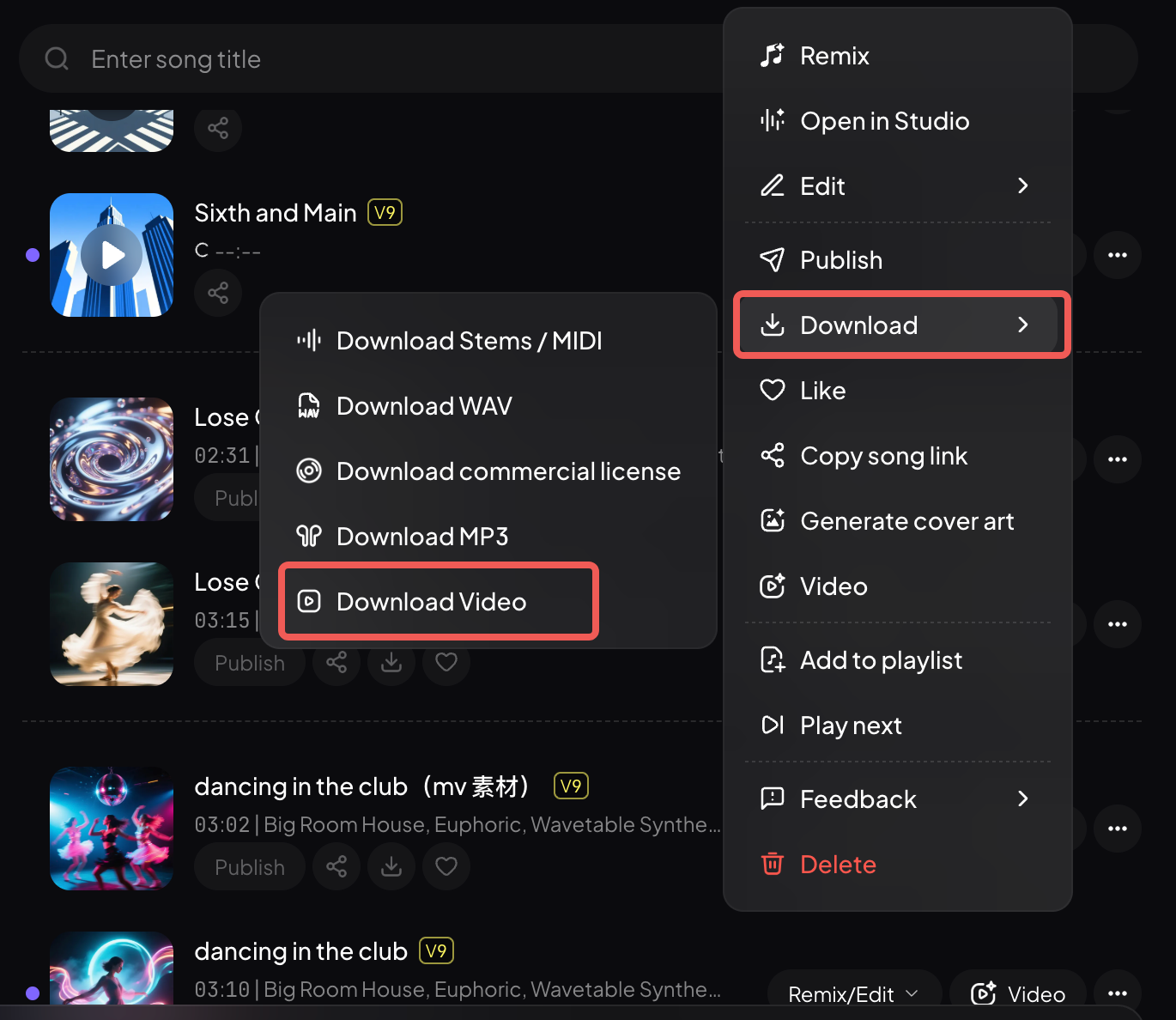
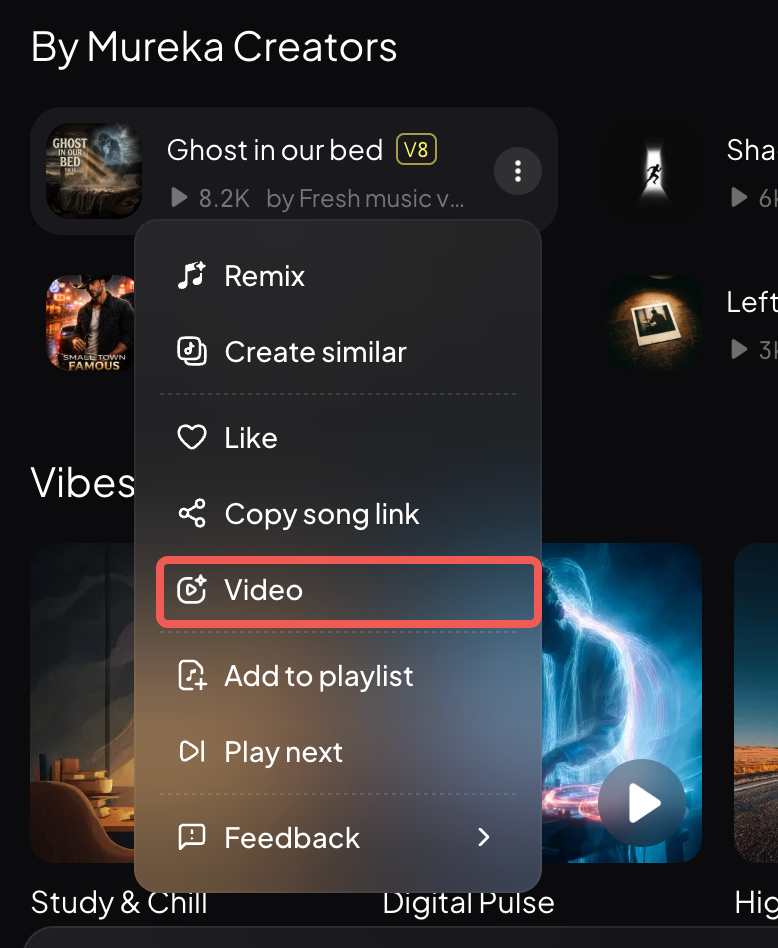
- Function Entry 2: Song more pop-up window → Download video/Video
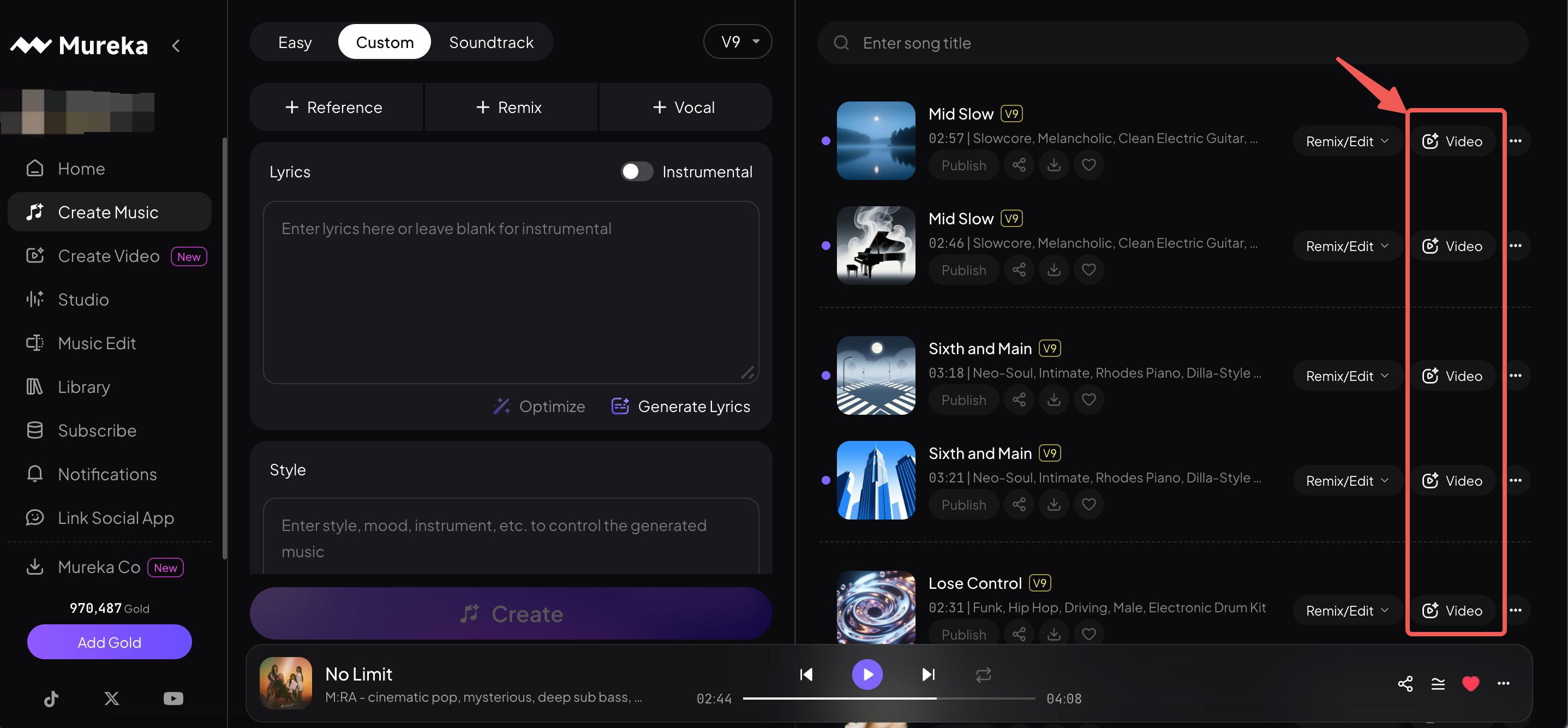
- Function Entry 3: Song list
- Function Entry 4: Song detail
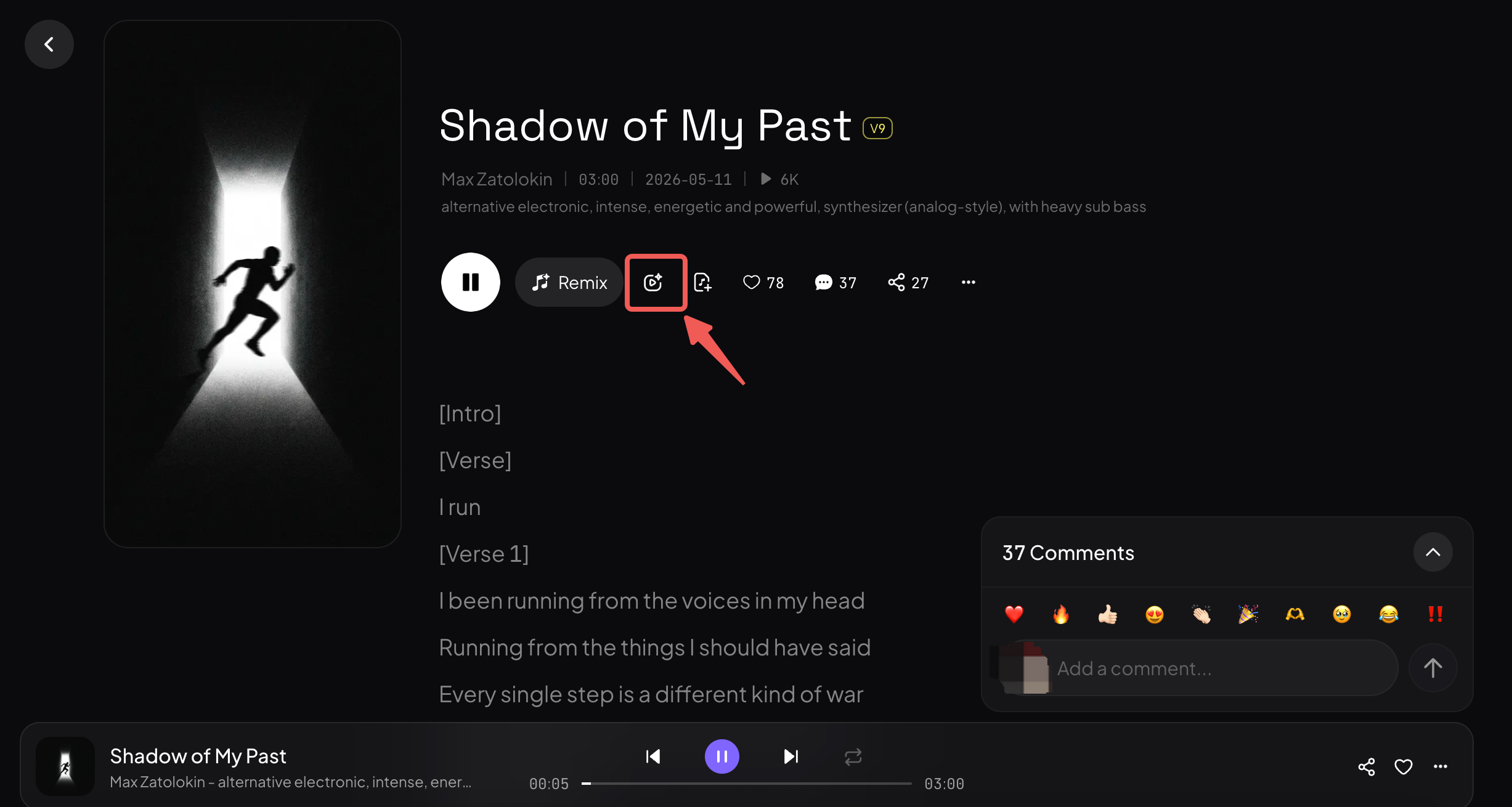
Showcase
Create Lyrics Video
Compose a shareable lyrics video by customizing layout, background, and text style — with real-time preview and direct download.
Core Capabilities
- Layout & background picker: Choose from multiple visual layout templates & backgrounds for lyrics display.
- Text style control: Font size, color, and lyrics lines.
- Real-time preview: Live canvas preview with draggable text elements.
- Direct download: Export and download the finished lyrics video without gold cost.
Why Use It
- Multiple layout templates
- No AI generation cost
- Live canvas preview
- Draggable layout elements
- Instant download
- Supports four aspect ratios
Boundaries
- Lyrics video is user-composed, not AI-generated.
- Song must be selected from the user's Mureka library. Support full song duration.
- Layouts are template-based; freely-drag items is supported.
- Output is downloaded directly — check all history in your library.
Entry
- Function Entry 1: Left sidebar
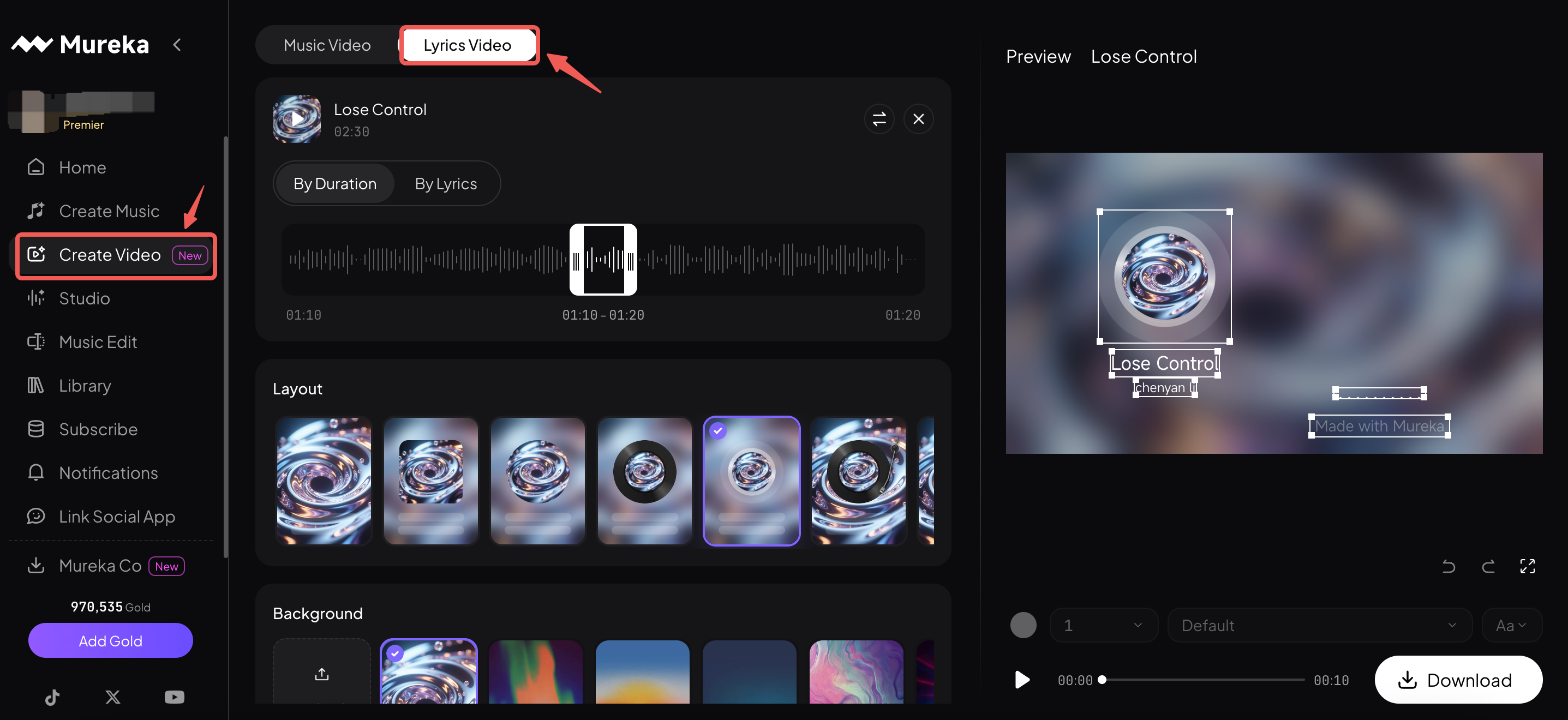
- Function Entry 2: Song more pop-up window → Download video/Video
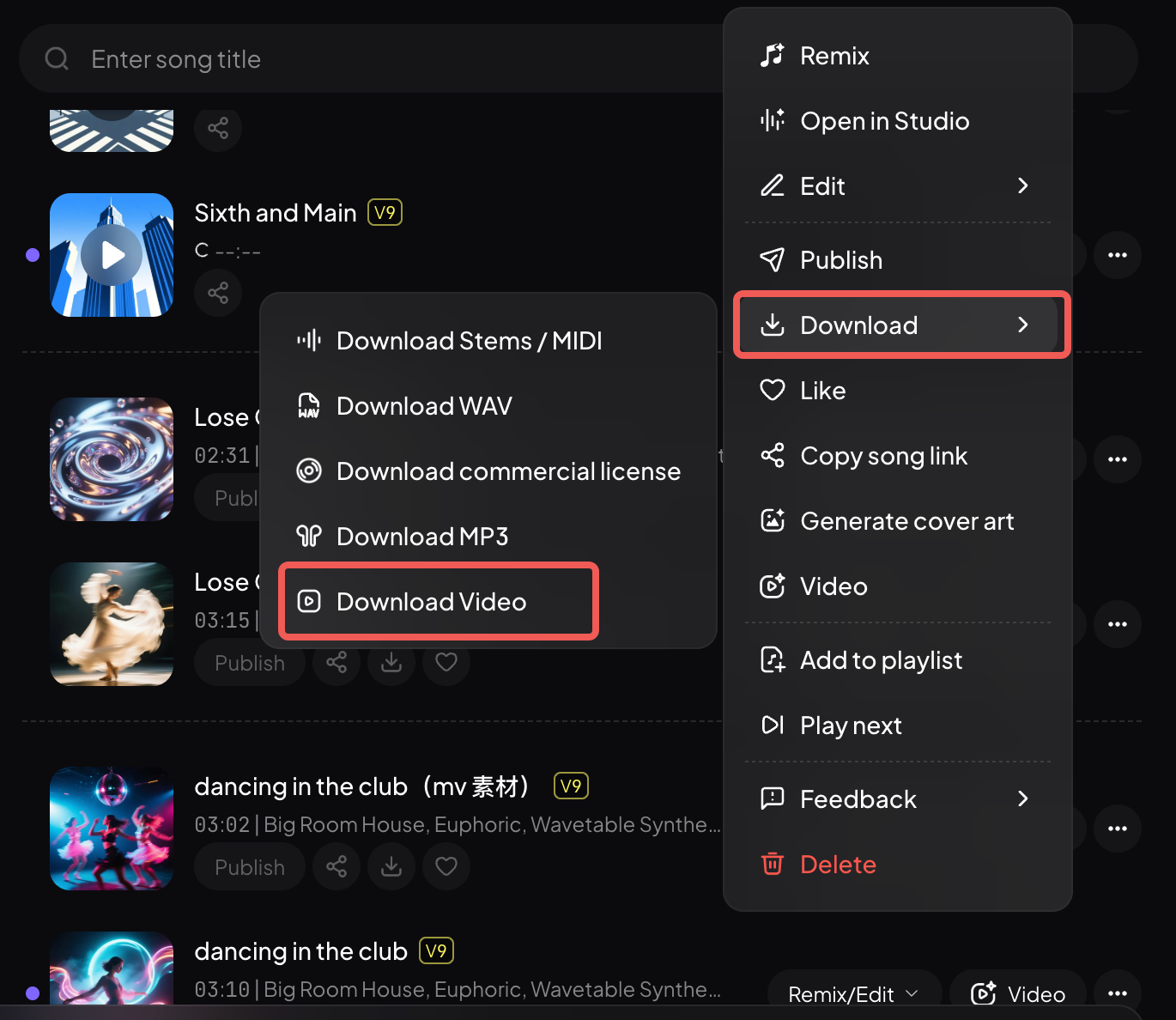
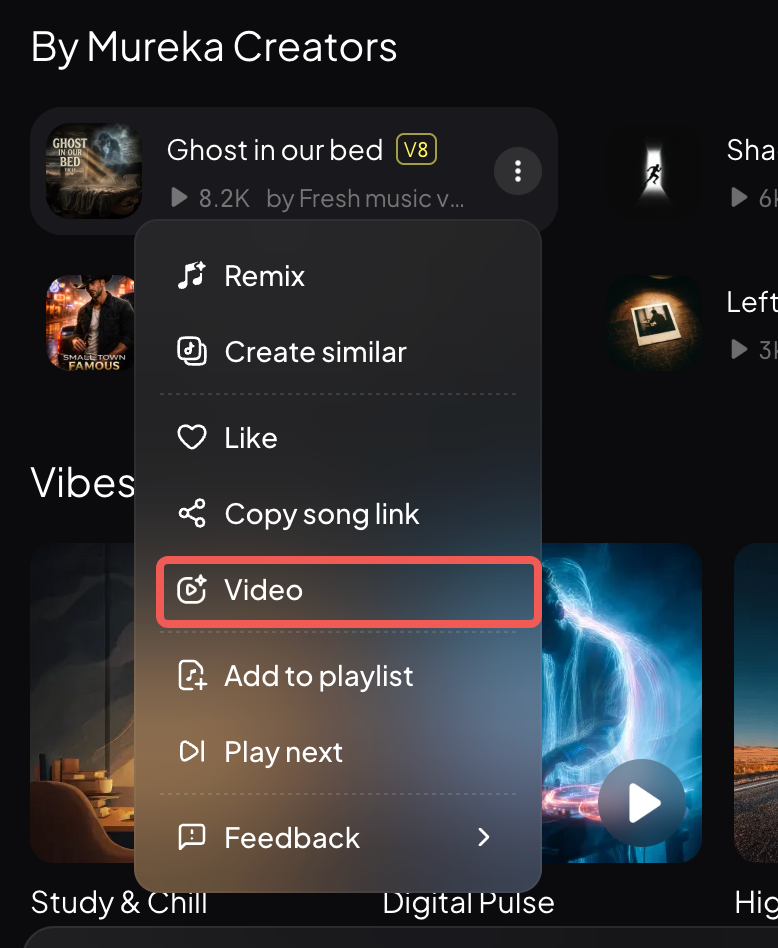
- Function Entry 3: Song list
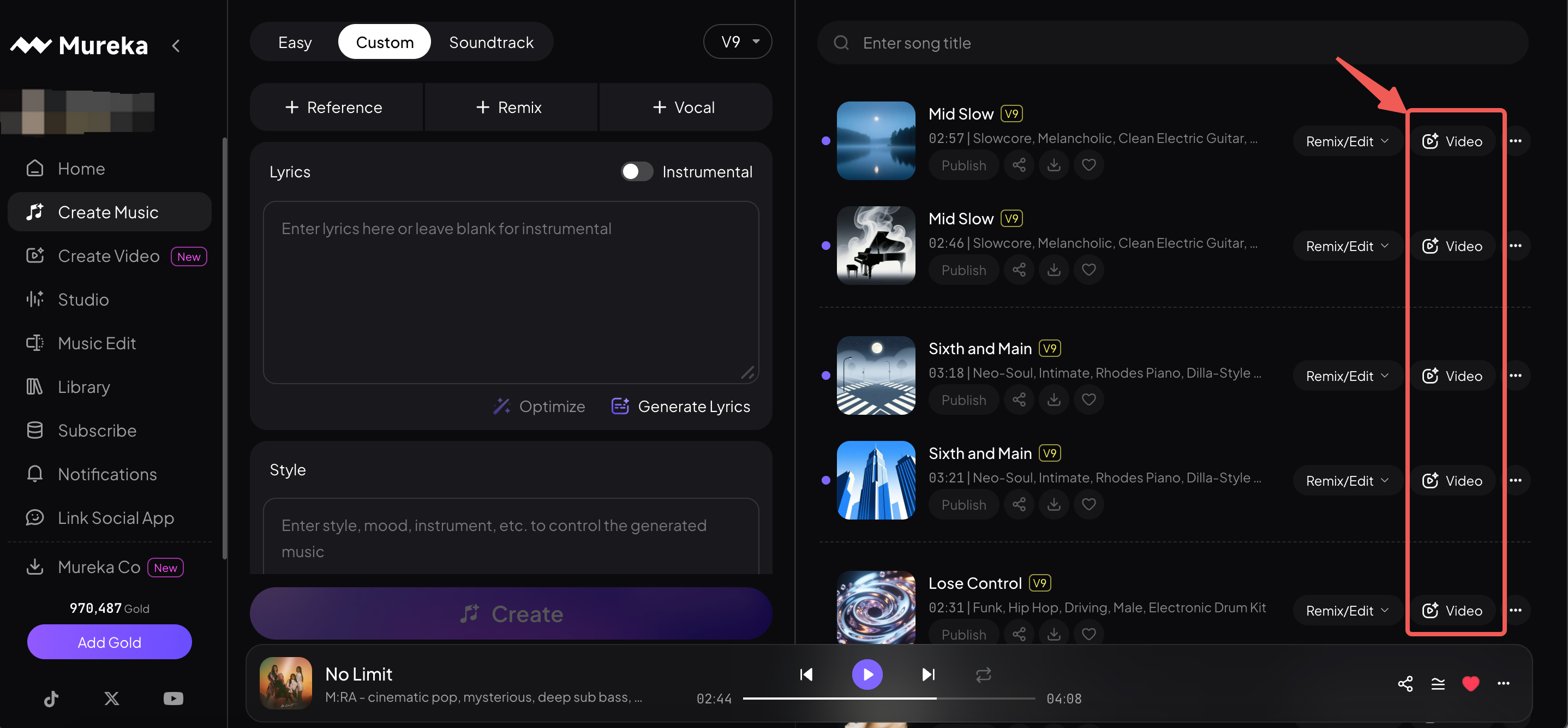
- Function Entry 4: Song detail
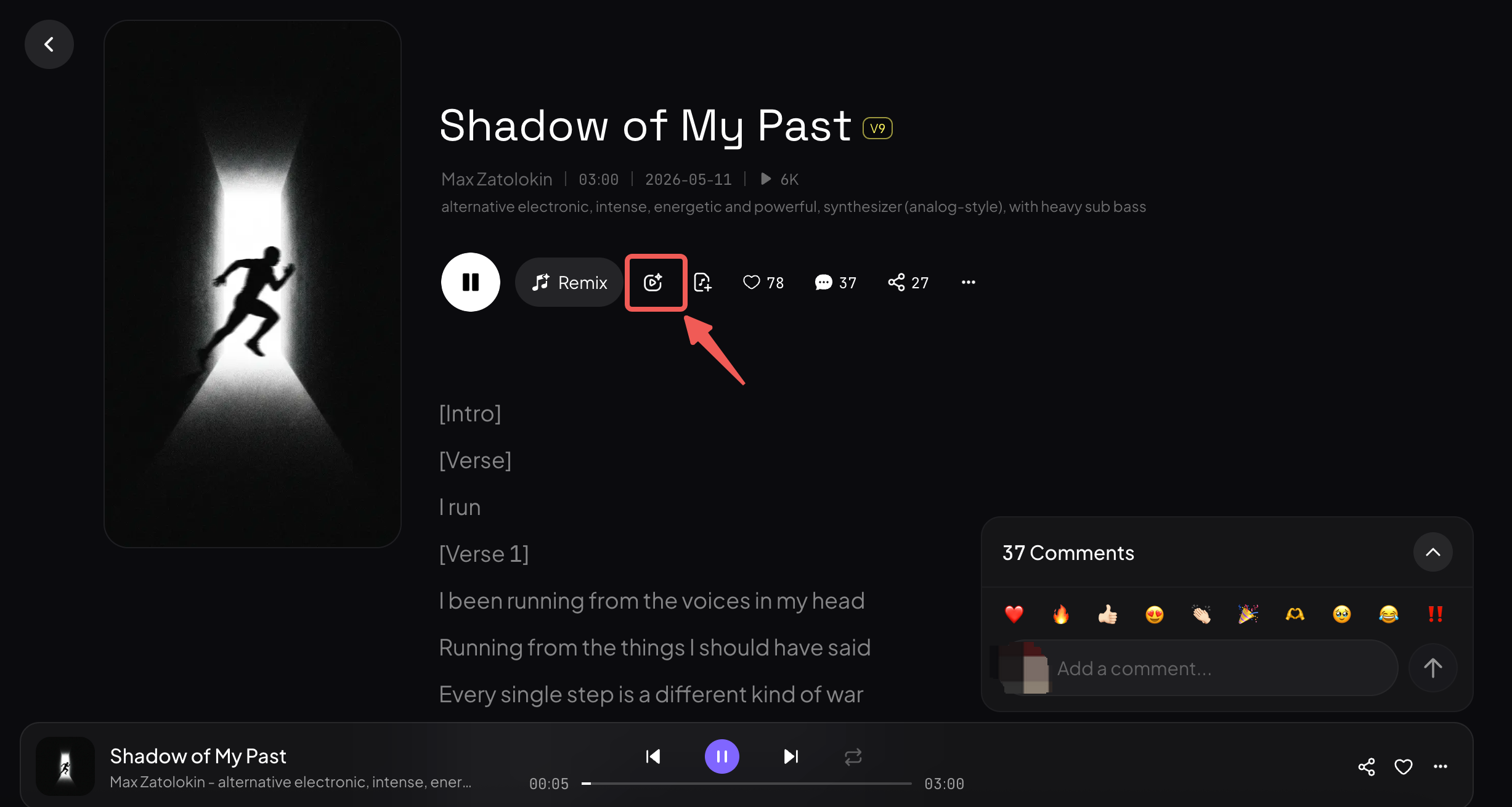
Showcase
- Showcase1
- Showcase2
- Showcase3
Studio
A professional AI music editor combining multi-track editing, AI generation, and precision control in a DAW-style creative environment.
Add Stem Track
Add new instrument tracks based on existing audio
Core Capabilities
- Add new stems based on existing tracks
- Support for multiple instrument type selections
- Automatically match the musical characteristics of the original track
- Maintain overall musical harmony
Why Use It
- Quickly enrich arrangements: Add new musical layers to your work with one click
- Smart matching: Newly added stems automatically blend with existing music
- Flexible creation: Gradually build complex multi-track arrangements
Boundaries
Added stems are generated based on existing track characteristics and are suitable for expanding arrangements within the same composition. When multiple tracks exist in Studio, generation is based on the initially uploaded track audio. If you want to generate based on the layered audio of multiple tracks, you can export first and then use this feature
How to Use
Add Instrumental
Add a complete instrumental backing track to existing audio
Core Capabilities
- Generate complete instrumental backing tracks
- Automatically adapt to the BPM and key of existing music
- Support style and instrument arrangement descriptions
- Naturally blend with original tracks
Why Use It
- Quickly complete arrangements: Rapidly add full backing to vocals or melodies
- Controllable style: Specify backing style and arrangement through descriptions
Boundaries
Generated complete backing tracks automatically match original track characteristics. For precise control over each instrument, we recommend using Add Stem Track to add them individually
How to Use
Add Vocal
Add AI-generated vocal tracks to existing backing music
Core Capabilities
- Generate vocal melodies matching the backing music
- Support custom lyrics input
- Automatically adapt to the musical characteristics of the backing
- Multiple voice types and singing styles available through descriptions
Why Use It
- Quickly add vocals: Rapidly add singing parts to instrumental tracks
- Flexible styling: Customize lyrics content and singing style
- Professional audio quality: Generated vocals have professional recording quality
Boundaries
Generated vocals adapt to existing backing music, but melody and rhythm are determined by AI based on backing characteristics. If you need complete control over melody, multiple generations may be needed to select the best result
How to Use
Extract Stems
Extract individual tracks (vocals, bass, drums, instruments, etc.) from a complete song, up to 12 tracks
Core Capabilities
- Support extraction of vocals, bass, drums, instruments and other stem types
- Export as high-quality audio or MIDI files
- Separated tracks can be edited directly in Studio
Why Use It
- Complete decomposition capability: Intelligently decompose mixed works into independently editable tracks
- Professional quality: High-quality separation suitable for further production
- Seamless DAW integration: Use directly in Mureka Studio, or download exported audio/MIDI for use in Logic, Ableton, FL Studio and other DAWs
Boundaries
Bleed may occur in complex mixes or with heavy special effects, and results may have fewer than 12 tracks if some instruments cannot be identified. Best suited for stem separation of standard pop music arrangements. MIDI export works best for melodic instruments; MIDI conversion of complex chords and percussion may not be perfect
Entry
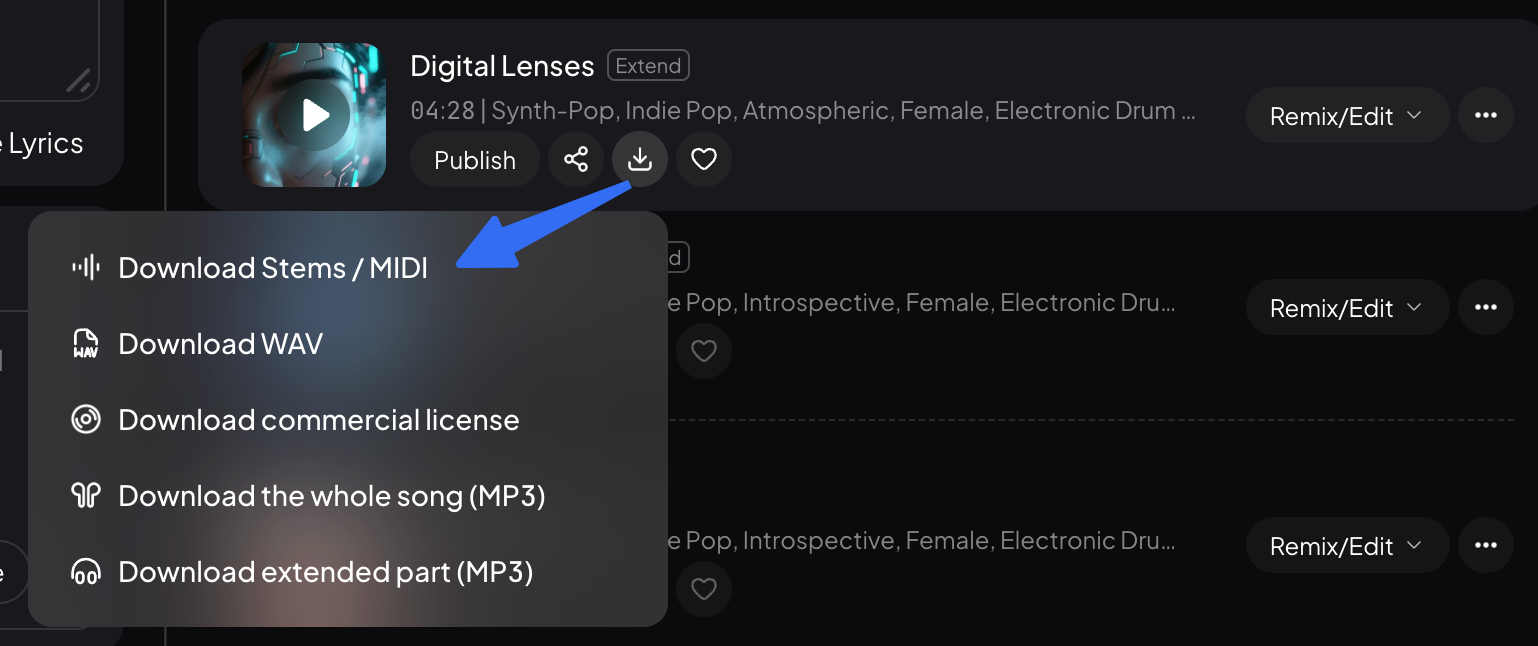
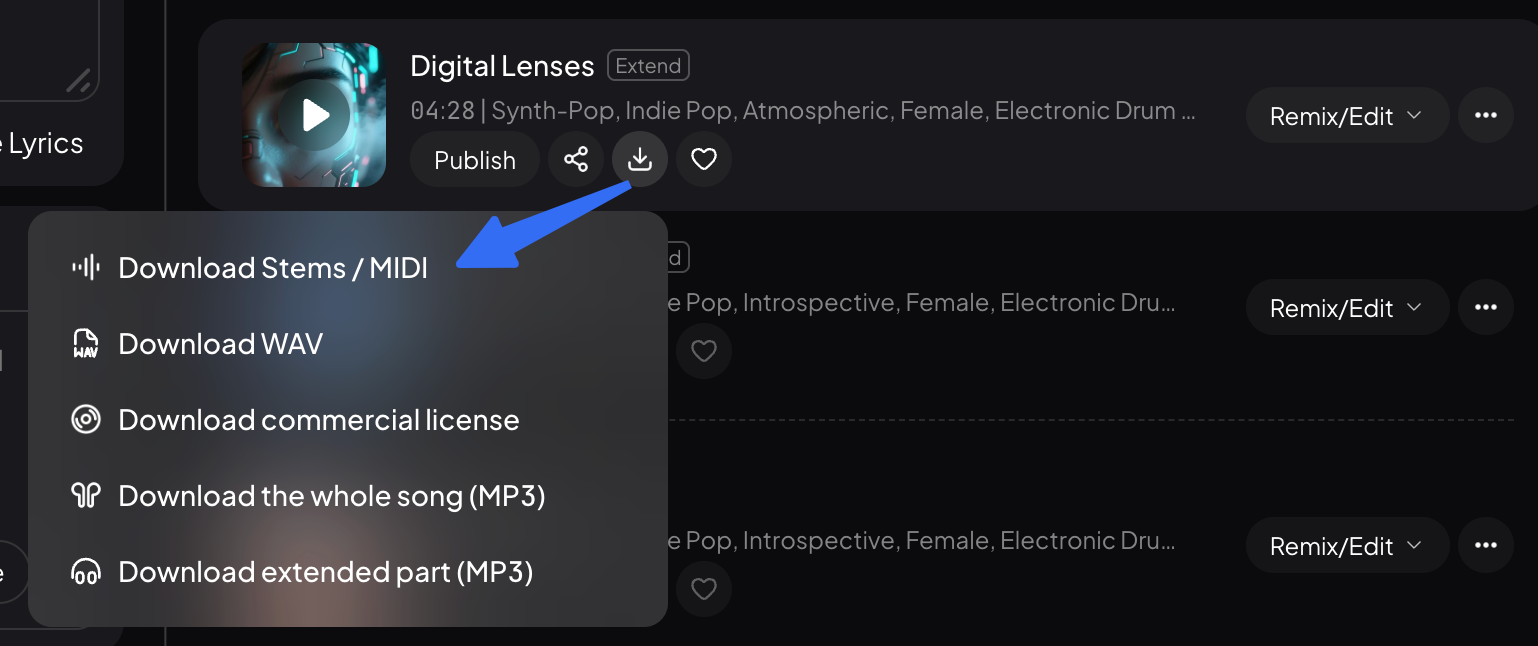
- Library-Download-Download Stem /MIDI:
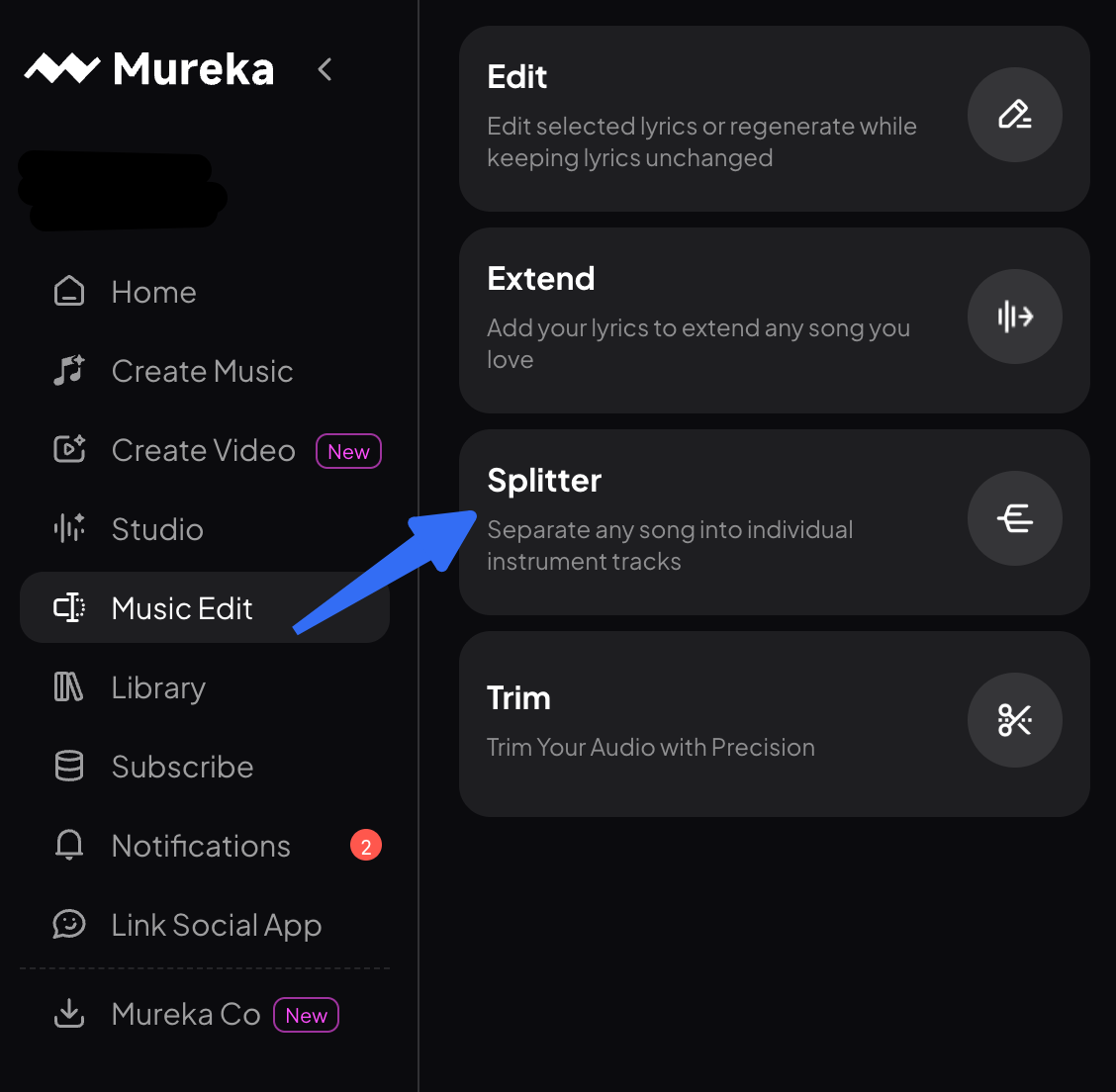
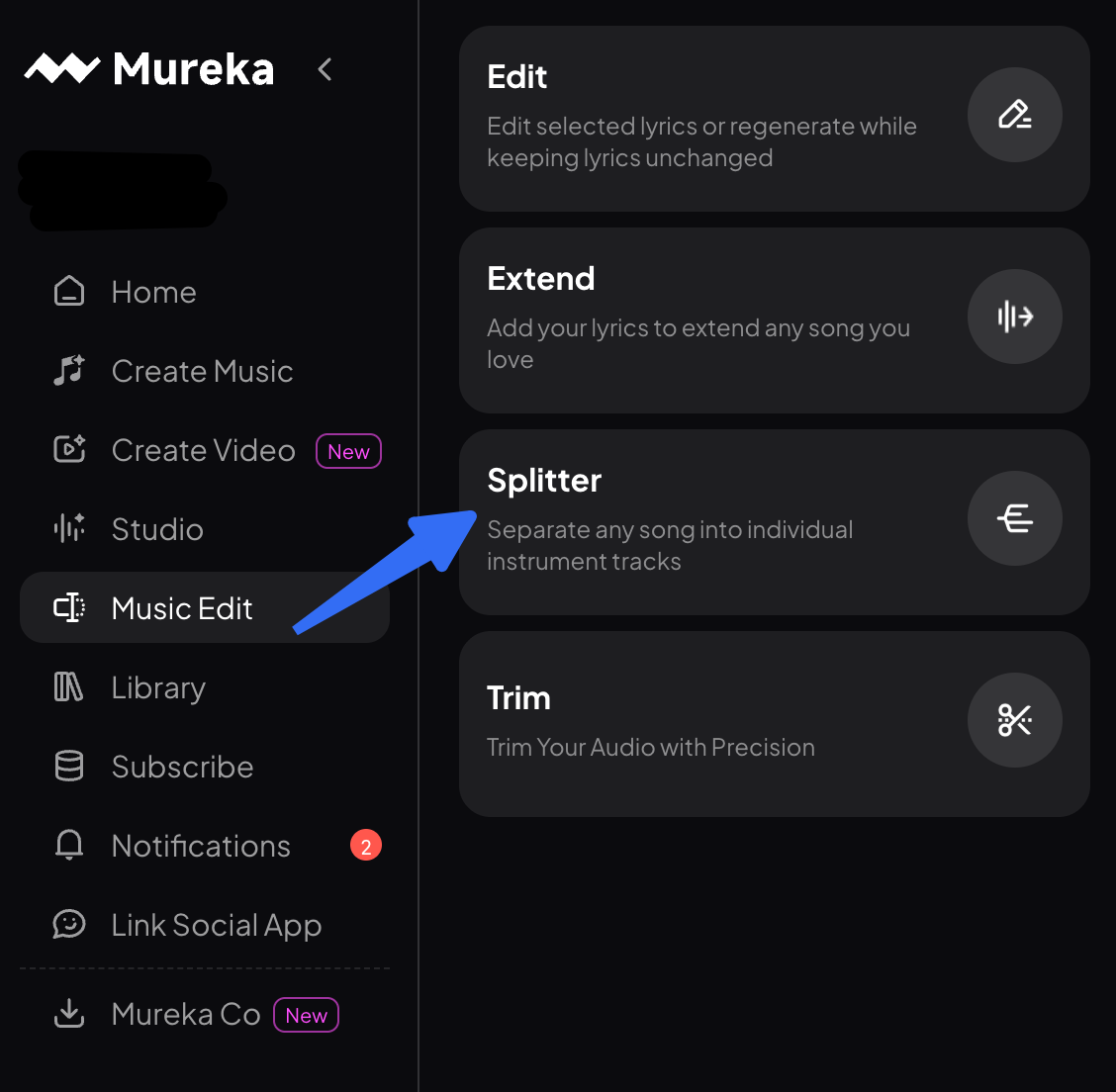
- Music Edit-Splitter:
How to Use
Replace
Select any segment for local regeneration, supporting lyric and style modifications while ensuring natural transitions
Core Capabilities
- Precise local segment replacement
- Support lyric content modification
- Support specifying new styles
- Automatically maintain natural transitions with surrounding content
Why Use It
- No need to start over: Only change the parts you want, keeping what you like
- Precise control: Modify down to the measure level
- Seamless transitions: AI ensures modified segments naturally flow with surrounding content
Boundaries
Replace is suitable for fine-tuning locally unsatisfactory parts. Recommended replacement segment length is between 4-16 measures. Segments too short (<4 measures) may struggle to fully express style changes; segments too long (>32 measures) should be split into multiple replacements for better control
How to Use
Extend
Append new content forward or backward at any position on the timeline without affecting existing audio
Core Capabilities
- Timeline extension in both directions (forward and backward)
- Complete preservation of existing content
- New content automatically connects with existing audio
- Support inserting new segments at any position
Why Use It
- Free expansion: Add intros, interludes, or outros to your work at any time
- Safe editing: Original creative work is not lost
- Flexible layout: Add new content at any position on the timeline
Boundaries
Extend generates new content based on musical characteristics before and after the extension point to ensure natural transitions. However, if you want to introduce completely different style changes in the extended segment, you may need to use Replace to further adjust after extension
How to Use
Music Edit
Edit(Fine-Tune Regions)
Regenerate selected phrases of a song.
Core Capabilities
When your track has minor flaws, there's no need to reroll the whole song — just regenerate the affected phrases to keep most of it and fix only the flawed parts.
Why Use It
Fix minor flaws without rerolling — pinpoint and repair lyrics, vocals, or melody issues; lower generation costs and make perfecting your track smoother.
Boundaries
- Regenerate individual lines the AI mis-sang to fix flaws, without changing the lyrics or melody.
- Regenerate unsatisfactory lyrics and melody together.
- Edit only the unsatisfactory lyrics, keeping the melody unchanged.
- Change the melody of unsatisfactory phrases, keeping the lyrics unchanged.
Entry
- Go to the Library screen, tap the Remix/Edit button, then tap Edit to open the Edit screen.
How to Use
- Go to the Library screen, tap the Remix/Edit button, then tap Edit to open the Edit screen.
- Tap the start and end lines of the lyrics you want to change to set the regeneration range.
- Edit the selected lyrics.
- Turn the Keep melody feature on or off.
- Tap ReCreate to generate a full new song — only the selected part is regenerated, while the unselected parts stay unchanged.
Extend
Append new content forward or backward at any position on the timeline without affecting existing audio
Core Capabilities
- Timeline extension in backward directions
- Complete preservation of existing content
- New content automatically connects with existing audio
- Support inserting new segments at any position
Why Use It
- Free expansion: Add intros, interludes, or outros to your work at any time
- Safe editing: Original creative work is not lost
- Flexible layout: Add new content at any position on the timeline
Boundaries
Extend generates new content based on musical characteristics before and after the extension point to ensure natural transitions. However, if you want to introduce completely different style changes in the extended segment, you may need to use Replace to further adjust after extension
Entry
- Go to the Library page, select the song to trim, tap the "···" button, choose Edit, then tap the Extend button to trim the song.
- Tap Music Create and select Extend to upload audio and edit it.
How to Use
- Tap to open the song's Extend screen.
- Select the audio range you want to extend.
- Enter the lyrics you want to continue with.
- Tap the Extend button to generate a new song with the extended section added.
Splitter
Extract individual tracks (vocals, bass, drums, instruments, etc.) from a complete song, up to 12 tracks
Core Capabilities
- Support extraction of vocals, bass, drums, instruments and other stem types
- Export as high-quality audio or MIDI files
Why Use It
- Complete decomposition capability: Intelligently decompose mixed works into independently editable tracks
- Professional quality: High-quality separation suitable for further production
Boundaries
Bleed may occur in complex mixes or with heavy special effects, and results may have fewer than 12 tracks if some instruments cannot be identified. Best suited for stem separation of standard pop music arrangements. MIDI export works best for melodic instruments; MIDI conversion of complex chords and percussion may not be perfect
Entry
- Library-Download-Download Stem /MIDI:
- Music Edit-Splitter:
How to Use
Trim|Audio Trimming
Select a segment — keep what you want, cut the rest.
Core Capabilities
Select range: drag on the waveform to pick the segment to process.
Trim ends: quickly remove silence at the start or a trailing tail at the end.
Preview before applying: confirm your selection before you cut.
Why Use It
The most common and simplest edit — easy to pick up.
Work right on the waveform — what you select is exactly what you get.
Boundaries
It only "cuts" — it won't change the audio content itself.
Entry
- Go to the Library page, select the song to trim, tap the "···" button, choose Edit, then tap the Trim button to trim the song.
- Tap Music Create and select Trim to upload audio and trim it.
How to Use
- Open the trim screen.
- Drag the start and end points to select the audio segment you want to keep.
- Tap Trim to remove the audio outside the selected range.
- Trim as many times as needed until you're happy, then tap Save to save it as a new song.
Mureka Co
An AI music co-worker that lets creators control DAW and call all AI generation capabilities through natural language conversation.
Natural Language DAW Control
Control your DAW through natural language — no menus, no shortcuts to memorize. Mureka Co translates what you say into DAW commands and executes them instantly.
Core Capabilities
- Track management: Create MIDI or audio tracks, rename, delete, mute, and unmute
- Clip operations: Create clips, move clips to a specific position, delete clips
- Session parameters: Set global BPM, change time signature
- Track parameters: Adjust volume and pan
- Effect chains: Load plugins onto a track and control their signal order (e.g., Reverb → EQ)
- Import / Export: Import local audio to a specific track position, export individual stems, bounce the full mix
Why Use It
- From idea to action in one sentence: Eliminates both "I have the idea but can't figure out the controls" and "I know the controls but lose my flow doing them" — creativity stays uninterrupted
- Non-destructive by design: Every action is previewed before it runs and supports standard DAW undo, so you're always in control of your session
- Zero learning curve: Nothing about your existing DAW workflow changes — repetitive tasks just get faster
Boundaries
- Currently supports Ableton Live and Reaper; other DAWs are not supported
- Available on both macOS and Windows
- Natural language control requires an active connection between Mureka Co and your DAW; generation features remain available if the connection is dropped
- Fine-grained plugin parameter adjustments (e.g., specific compression ratios or EQ gain values) are not currently supported — use the DAW interface for those
Entry
- Natural language conversation
How to Use
- User: "Create a new MIDI track called Synth Lead, and set the BPM to 120"
- → A new MIDI track named Synth Lead is created and the session BPM is updated to 120
- User: "Add reverb and EQ to the Vocal track, put reverb first in the chain"
- → Reverb and EQ are loaded onto the Vocal track in the correct signal order
One Conversation, Every Capability
Access every Mureka AI generation capability through natural language — full songs, single tracks, Remix, Extend, MIDI export, Voice Clone, Soundtrack, and more — all without switching screens.
Core Capabilities
- Full song generation: Describe a style and mood — a complete song is generated and imported into your DAW, with the project created, stems split, and beats aligned automatically
- Single track generation: Add an instrument, vocal, or instrumental track on top of an existing session; supports time-range targeting and using an existing track as a style reference
- Audio Ref: Upload a reference audio file; Mureka analyzes its style and generates a new song in the same vibe
- Remix: Re-arrange an uploaded track, with the option to keep or replace the lyrics
- Extend / Local Edit / MIDI Export / Voice Clone / Soundtrack: Full coverage of core music production workflows
Why Use It
- One sentence, done: From idea to finished content in your DAW — one conversation is all it takes
- A single entry point for everything: No need to remember where each feature lives — just describe what you want and the agent picks and runs the right generation flow
- AI output that fits straight into a pro workflow: Generated music lands in your DAW as split stems, beat-aligned and ready for further editing
Boundaries
- Currently tied to Ableton Live for import; generated results cannot be written directly into other DAWs
- Before each generation, the agent presents a summary of the planned action for you to confirm — this confirmation step cannot be skipped
Entry
- Natural language conversation
How to Use
- User: "Generate a lo-fi hip-hop track with a late-night driving feel, around 85 BPM" → Mureka Co generates the full song → User previews and confirms → One click imports into Ableton, project created with stems split and beats aligned
Upload Local Files and Create from Your Own Material
Upload your own audio, images, or video to unlock Remix, Extend, Local Edit, MIDI Export, Voice Clone, Soundtrack, and more — turning AI into a true extension of your existing work.
Core Capabilities
Drop audio (mp3 / wav / flac / m4a), images (jpg / png), or video (mp4 / mov / mkv / avi) directly into the input box
Pair the upload with a natural language prompt to trigger the right creation flow
The agent automatically extracts style, duration, BPM, and other parameters from your file to guide generation
Supported capabilities:
- Audio Ref: Analyzes the style of an uploaded track and generates a new song in the same vibe — original audio untouched
- Remix (lyrics optional): Re-arranges an uploaded track; keep the original lyrics or swap in new ones — written by the agent or yourself
- Extend (forward / backward): Extend from any point in either direction; the generated segment splices in seamlessly
- Local Edit: Surgically replace a specific time range — either preserving the original melody or generating something entirely new
- MIDI Export: Extracts the main melody from uploaded audio and outputs a MIDI file, ready to drop onto any DAW track
- Voice Clone: Captures the vocal timbre from an uploaded track and uses it to sing new material (only available when vocals are detected)
- Soundtrack: Upload an image or video; the agent reads the mood and generates a score matched to the duration
Why Use It
- Your material is your best prompt: A reference track or video clip says more than any text description — just upload it and go
- Fits your existing workflow: Upload from your local files the same way you always have; no cloud migration required
Boundaries
- Image uploads are limited to Soundtrack scoring and lyric-video use cases; images cannot be used to trigger other generation types
- Supported formats: audio — mp3 / wav / flac / m4a; image — jpg / png; video — mp4 / mov / mkv / avi
- Voice Clone is only available when the agent detects vocals in the uploaded audio; purely instrumental files will not trigger it
- Remix with lyrics replacement first transcribes the original lyrics and shows them for your confirmation; accuracy depends on the clarity of the original mix
- For Local Edit, the recommended replacement length is 4–32 bars; segments shorter than 4 bars may not express style changes fully, and longer segments are best split into multiple passes
- MIDI Export works best for melodic instruments; conversion accuracy for complex chords and percussion is limited
Entry
- Natural language prompt + drag-and-drop upload
How to Use
- Click the attachment icon in the input box or drag a file directly into it, then add a natural language prompt to trigger the corresponding capability.
- Example: Upload demo.mp3 "Generate a song in a similar style to this"